


Google Docs
4.776.68K Reviews
App Specs
- Version
- Varies with Device
- Updated On
- License
- Free
- Downloads
- 1,000,000,000+
- Developer
- Google LLC
- Categories
- Productivity
- Platform
- Android, iOS
Screenshots
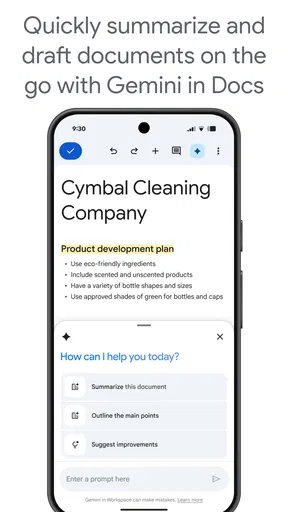
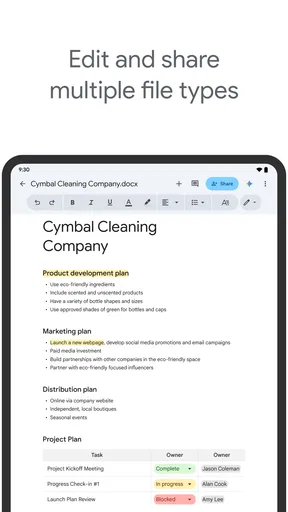
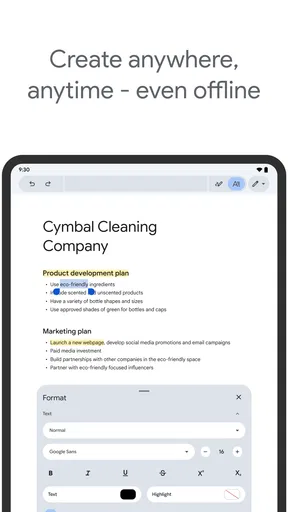
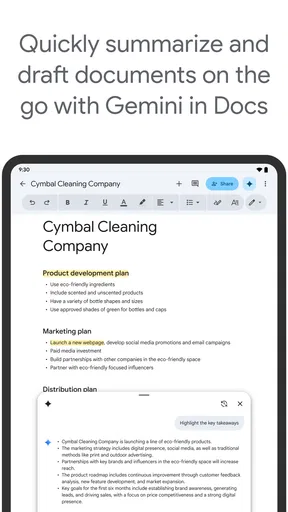
 Analysis by AppCompare
When I’m drafting something on my phone, the biggest question is often not which formatting tool I can use, but whether I can keep working as my connection changes. Google Docs is built around documents that are easy to open, edit, and share, and that makes it a practical choice for everyday writing. I find it most useful when a piece of work moves between my phone, a computer, and other people rather than staying in one place.
When the network is part of the workflow
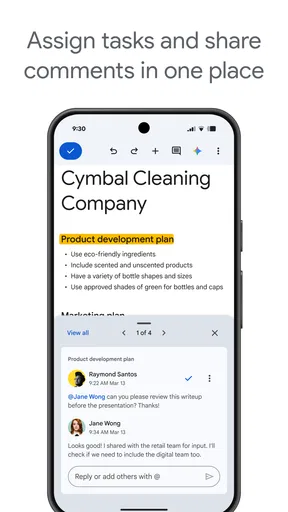
Collaboration is where the connection makes the most visible difference. When everyone has access to the same document, people can contribute without passing around a chain of separate attachments. That is a real advantage for a shared agenda, a group assignment, or notes that need input from several people. Instead of trying to work out which file is newest, the group can focus on the words in front of them.
The trade-off is that shared work depends on people being able to reach the document and on having a clear plan for who is changing what. If several contributors are editing a draft at once, I recommend agreeing on responsibilities before the writing begins: one person can shape the structure while another checks facts or adds a section. That small bit of coordination makes live collaboration more useful and reduces the risk of a document becoming a patchwork of competing edits.
Guides and Analysis on Google Docs
For a meeting, I might prepare an outline while connected, share it with the group, and use the same document to collect decisions and follow-up tasks. This is more convenient than gathering notes from multiple chat threads later. It also makes the document useful after the meeting, provided the people who need it can access it. I would still keep especially important instructions easy to find near the top rather than assuming everyone will read every paragraph.
Writing on a phone has its own limits
On mobile, the app suits short bursts of work particularly well: capturing an idea, correcting a paragraph, reviewing a shared draft, or adding a few points to a list. A phone screen is less comfortable than a laptop for long sessions of restructuring or detailed formatting, so I treat mobile editing as a way to keep momentum rather than a perfect replacement for a larger workspace. If I am composing a long document, I prefer to use the phone for notes and revisions, then do a careful final pass on a bigger screen.
A useful habit is to give each document a clear, recognizable name before sharing it. When a project produces several drafts, descriptive names make it easier to choose the right one from a recent-documents view. I also find it helpful to put a brief outline in place before polishing individual sentences. On a small screen, repeatedly scrolling through a long draft to remember its structure is more tiring than deciding on the sections first.
Voice typing can be convenient when I need to capture a thought without tapping every word, but I would not treat dictated text as finished copy. Names, punctuation, and specialized terms deserve a review, especially if the document is going to someone else. My practical approach is to dictate the rough idea, then edit it with the keyboard when I can give the text proper attention.
Worth Reading Before You Choose

ESPN’s Live Game View Makes Following Close Games Easier

QuizzLand Review: A Good Fit for Short Trivia Breaks, Not Every Player

Basketball Stars: Multiplayer Is Fast, but Can It Recover When Matches Go Wrong?

WEBTOON Turns Phone Updates Into a Better Reading Routine

Link to Windows Runs on Shared Habits, Not Social Feeds

How Alibaba.com Dominates the B2B Marketplace
Recovering from interruptions and avoiding confusion
Mobile work rarely happens in ideal conditions. A call, a change of location, or a weak connection can interrupt a writing session, so I try not to make one device or one uninterrupted session the only place where important thinking happens. For a substantial draft, I use headings and short sections to make it easier to return to the point where I stopped. If a document is shared, I also make my changes in the relevant section rather than scattering small edits across the page.
When a change does not appear where I expect, I avoid immediately typing the same passage again. Repeating edits can create more confusion if the document is catching up or if I have opened another copy. I first check which document I am in, then review the section before making another change. For collaborative work, it helps to tell teammates which part I am editing, particularly when the group is working under time pressure.
This is not a substitute for thoughtful file management. A shared document can make teamwork smoother, but it cannot decide which draft is authoritative or whether a contributor should have access. Before sending a document to a group, I check that I am sharing the intended file and that its contents are ready for the intended audience. That extra moment matters when notes include unfinished ideas or private details.
Choosing what to do with limited data
When I am trying to conserve mobile data, I keep the task simple: open only the document I need, avoid repeatedly switching among several large working files, and save broader review sessions for a more suitable connection when possible. This is less about counting every edit than about reducing unnecessary browsing and keeping my attention on one task. If I know I will need to contribute to a shared document, I plan the work ahead rather than waiting until the last minute to locate it.
For anyone who needs to work without a reliable connection, the key question is whether their particular documents are available for the situation they expect. The original experience described here includes marking documents for offline access and later syncing changes, but I would test that workflow with a low-stakes file before relying on it for a deadline. That simple check helps me understand what is ready on my device and what still depends on getting back online.
Getting Started with Google Docs
First off, installing Google Docs is a breeze. Head to the Google Play Store or the Apple App Store, download, and you'll be up and running in no time. The interface is clean and straightforward, which is a huge plus if you're not into overly complicated apps. Once you open it, you're greeted with a list of your recent documents, making it super easy to pick up where you left off.
Features That Make It Stand Out
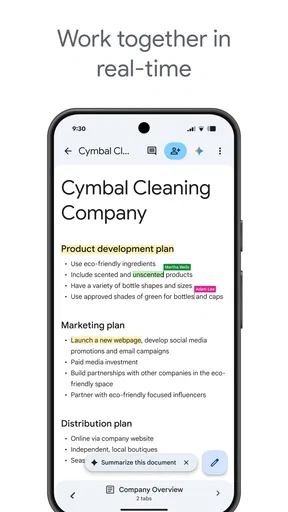
One of the coolest things about Google Docs is its real-time collaboration feature. You can invite folks to join your document, and everyone can work on it simultaneously. It's like magic watching changes happen in real-time without any lag. This is a lifesaver for group projects or brainstorming sessions.
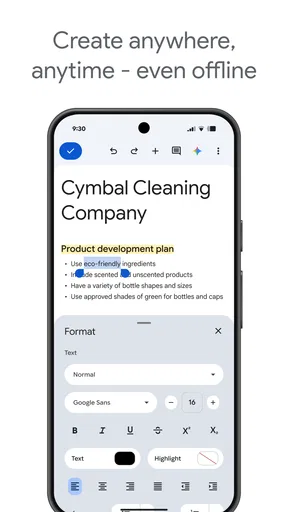
Another nifty feature is the ability to access and edit your documents offline. Just mark the documents you need offline, and you're good to go even when you don't have Wi-Fi. Plus, everything syncs up automatically once you're back online, so no worries about losing any changes.
User Experience and Interface
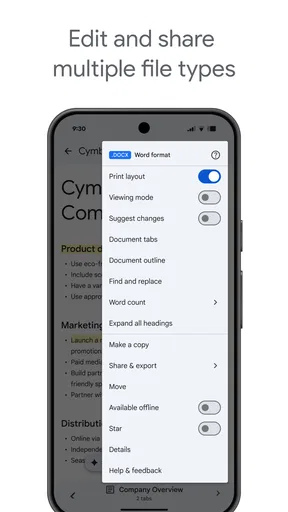
The app is super intuitive. All the essential tools are easy to find, and there are tons of formatting options available. Whether you need to tweak fonts, create lists, or insert tables, it's all at your fingertips. The voice typing feature is also pretty handy if you're on the move and need to jot down notes quickly.
And let's not forget the seamless integration with other Google services. You can easily import data from Sheets or Slides, which is incredibly convenient. If you're already in the Google ecosystem, this app fits in perfectly.
How it compares and who it suits
As a free productivity app from Google LLC, Google Docs is an appealing option for people who want to write and collaborate without first buying a traditional desktop word processor. It is rated for Everyone, has a 4.7 average from around 2.5 million ratings, and has been installed over a billion times. Those figures reflect its broad reach, but they do not mean it is the best fit for every writing job.
Compared with a basic notes app, it is better suited to material that needs structure, formatting, or contributions from other people. Compared with a full desktop word processor, its phone interface is more approachable for quick edits, while a larger-screen tool may feel more comfortable for complex page layout and long documents. I would choose it for shared drafts, class notes, meeting plans, and everyday writing. I would look elsewhere if my priority were highly controlled print layout or if my work depended on a specialized publishing workflow.
It is particularly useful for students coordinating a project, families maintaining a shared plan, and small teams that need one editable draft rather than several emailed copies. Someone who mostly writes privately and never shares documents may not need its collaborative workflow; a simpler notes tool could be quicker for fleeting reminders. Likewise, anyone who needs a polished final document should allow time to check spacing and formatting on the device or software where it will be presented.
Why You Should Give It a Try
If you haven't tried Google Docs yet, you're missing out. It's perfect for anyone who needs a reliable word processor that's accessible anywhere. The collaboration features alone make it worth trying, especially if you're working with a team. Plus, the app is constantly updated with new features, so it just keeps getting better.
In summary, Google Docs is a must-have app for anyone who wants a simple yet powerful document editor. From real-time collaboration to offline access, it ticks all the boxes. So, why not give it a spin and see how it fits into your workflow? You might just find it's the tool you didn't know you needed.
My connectivity verdict
I would recommend it when the document itself is the center of the work: a plan that needs comments from others, a draft that will be revisited on different devices, or notes that should remain organized beyond a quick phone memo. Its main strength is not simply that it can edit text, but that it gives shared writing a straightforward home. The most dependable experience comes from knowing which document is current, preparing for interruptions, and checking important changes rather than assuming every workflow will be effortless.
For a first try, I would create a short document, test the formatting I actually use, and invite one person to make a small contribution. If I expect to work away from a connection, I would also prepare the specific file in advance and verify that I can use it before relying on it. Those small tests answer the practical questions that matter: whether the interface suits my writing, whether collaboration fits my group, and whether my intended mobile routine is comfortable. For flexible everyday documents, I find it a sensible choice; for layout-heavy work or a workflow that does not need sharing, another tool may be a better match.
Pros
- Real-time collaboration is seamless.
- Accessible on multiple devices easily.
- Integration with Google Drive is smooth.
- Wide range of templates available.
- Offline editing is supported.
Cons
- Requires a Google account to use.
- Limited formatting compared to MS Word.
- Internet needed for full features.
- Some features are hidden in menus.
- Mobile app can be less intuitive.
FAQs for Google Docs
What are the main features of Google Docs?
Google Docs offers a wide range of features including real-time collaboration, automatic saving, and a variety of formatting tools. Users can create and edit documents online with ease, access templates for various document types, and use add-ons to extend functionality. It also supports offline editing when internet access is unavailable.
Is Google Docs free to use?
Yes, Google Docs is free for personal use. It is part of the Google Workspace suite, which also includes other services like Google Sheets and Google Slides. While businesses can opt for paid plans with additional features, the core functionality of Google Docs remains free for individual users.
Can I use Google Docs offline?
Yes, Google Docs can be used offline, but you need to set it up first. To enable offline editing, open Google Docs in Chrome and turn on offline access in the settings. This allows you to work on your documents without an internet connection, with changes syncing once you're back online.
How does collaboration work in Google Docs?
Google Docs allows multiple users to collaborate on a document simultaneously. You can share a document with others by sending them a link or an email invitation. Users can comment, suggest edits, or make changes in real-time, all of which are visible to collaborators. This makes it ideal for team projects and group work.
Is Google Docs secure?
Google Docs uses several security measures to protect your data, including encryption both in transit and at rest. Users can manage sharing settings to control who has access to their documents. Google regularly updates its security measures, but users should also use strong passwords and enable two-factor authentication for added security.


